

 Watch
Watch
 CASUAL WEAR
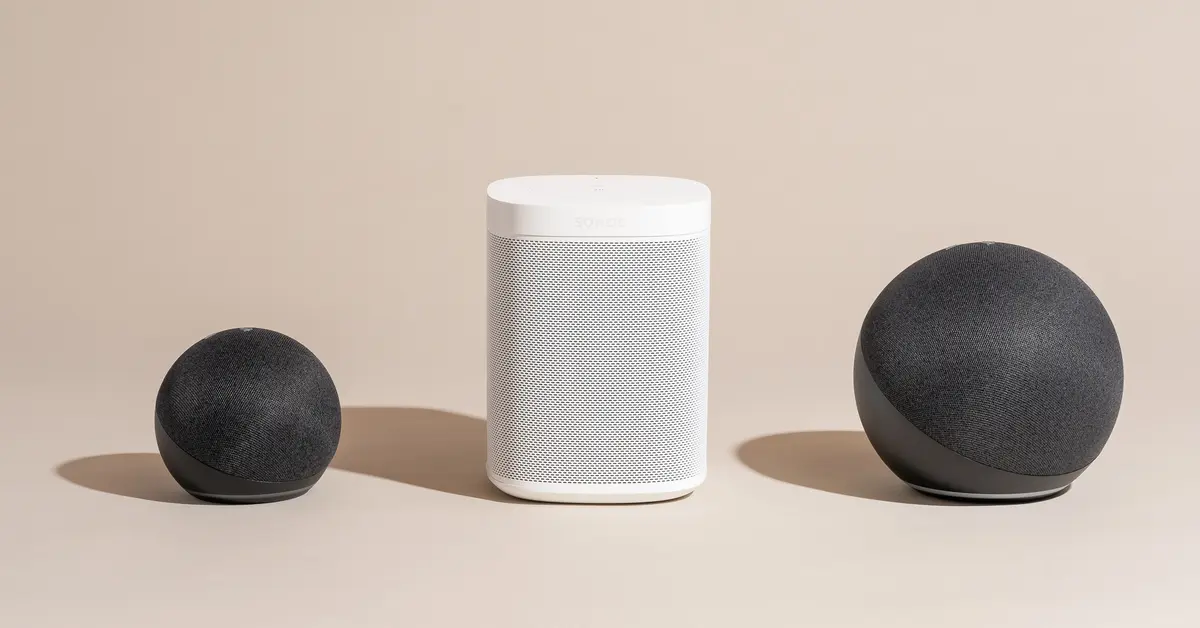
How to use Alexa: In today’s world, smart home technology is no longer a luxury — it’s becoming a daily convenience. At the center of this smart revolution stands Amazon Alexa, one of the most popular and powerful virtual voice assistants. Whether you want to play music, turn on lights, ask questions, control appliances, or automate your home — Alexa can do it all with simple voice commands.
This guide will explain everything you need to know about how to use Alexa step-by-step, even if you’re a complete beginner.
🔍 What Is Alexa?
Alexa is Amazon’s smart voice assistant designed to help you perform tasks using voice commands. Instead of typing on a phone or pressing buttons, you simply speak, and Alexa responds instantly.
You can think of Alexa as a virtual digital assistant powered by Artificial Intelligence (AI) that listens to your voice, understands your request, and performs actions.
🔍 What Alexa Can Do
Alexa can perform hundreds of tasks, including:
✔ Answer questions
✔ Play music and movies
✔ Control smart home devices
✔ Set alarms, reminders, and timers
✔ Give weather and news updates
✔ Make shopping lists
✔ Call or message people
✔ Automate daily routines
✔ Tell jokes and stories
📌 Where Alexa Works
You can use Alexa through:
- Amazon Echo, Echo Dot, Echo Show (smart speakers)
- Smart TVs
- Smart bulbs and plugs
- Mobile devices (Alexa app)
- Smart home appliances
🗣 How You Use It
Just say the wake word “Alexa”, then give a command like:
- “Alexa, what’s the time?”
- “Alexa, play music.”
- “Alexa, turn on the light.”
- “Alexa, set an alarm for 7 AM.”
Alexa listens, understands, and performs the task automatically.
💡 In Simple Words
👉 Alexa is a smart voice assistant that allows you to control your home and get information just by speaking.
It makes daily life easier, faster, and more comfortable — a true smart home companion.

🔧 Before You Begin — Things You Need
To use Alexa successfully, make sure you have:
| Requirement | Details |
|---|---|
| Wi-Fi Connection | Stable internet connection |
| Smartphone | Android or iOS |
| Alexa App | Free download from Play Store / App Store |
| Amazon Account | Necessary for login |
| Alexa Device | Echo Dot / Echo Show / Smart speaker |
Once you have everything ready, let’s proceed to the setup.
🛠 Step-by-Step: How to Set Up and Use Alexa
Step 1: Download & Install the Alexa App
- Go to Google Play Store or Apple App Store
- Search “Amazon Alexa”
- Download and install the app
- Open the app and sign in with your Amazon account
Step 2: Power On Your Alexa Device
- Plug your Amazon Echo device into power
- Wait for the blue ring light to appear
- Once it turns orange, the device is in setup mode
- If not, press & hold the Action button for 5 seconds
Step 3: Connect Alexa to Wi-Fi
- Open the Alexa app
- Tap Devices → Add Device
- Select Amazon Echo
- Choose your model (Echo Dot, Echo Show etc.)
- The app will detect the device
- Select your Wi-Fi network
- Enter the password and wait until connected
Once connected, Alexa will say:
“Your device is ready.”
💬 Step 4: Talk to Alexa — First Voice Commands
Wake Alexa by saying “Alexa.”
Then give commands like:
- “Alexa, what’s the time?”
- “Alexa, play music.”
- “Alexa, what’s the weather today?”
- “Alexa, set an alarm for 7 AM.”
Alexa responds instantly every time you start with “Alexa”.
🎶 Using Alexa for Music
One of the most loved features of Alexa is its seamless music playback. With a simple voice command, Alexa can turn your home into a music zone — whether you’re cooking, relaxing, working out, celebrating with friends, or trying to sleep.
Alexa supports both online music streaming services and Bluetooth audio, making music control effortless and hands-free.
🎧 Music Apps Supported by Alexa
Alexa works with a wide range of popular music platforms, including:
- Amazon Music
- Spotify
- Apple Music
- JioSaavn
- Gaana
- Wynk Music
- Hungama
- TuneIn Radio
- YouTube (via Bluetooth)
You can link these services using the Alexa app and enjoy music anytime.
🗣 Voice Commands to Play Music
After saying the wake word “Alexa”, you can give commands like:
| Task | Voice Command Example |
|---|---|
| Play any song | “Alexa, play music.” |
| Play singer wise | “Alexa, play Arijit Singh songs.” |
| Play genre wise | “Alexa, play romantic songs.” |
| Play language wise | “Alexa, play Bengali songs.” |
| Play mood wise | “Alexa, play relaxing music.” |
| Play playlist | “Alexa, play my favorites playlist.” |
| Play radio | “Alexa, play FM radio.” |
| Stop music | “Alexa, stop the music.” |
| Volume change | “Alexa, volume 6 / volume up / volume down.” |
The more specific your command is, the better Alexa understands your music choice.
🔗 Connecting Music Apps to Alexa
To enjoy full music control:
- Open the Alexa App
- Go to More → Settings
- Tap Music & Podcasts
- Select your music service (Spotify, JioSaavn, Gaana etc.)
- Log in and link the account
After linking, you can choose a Default Music Service so you don’t need to mention the app name every time.
Example:
- Instead of “Alexa, play romantic songs on Gaana”
- You can simply say “Alexa, play romantic songs”
🔊 Music Control in Multiple Rooms
If you have multiple Echo devices, you can use multi-room music:
Example:
- Play music everywhere → “Alexa, play music on all speakers.”
- Play in a specific room → “Alexa, play music in the bedroom.”
- Stop music everywhere → “Alexa, stop music everywhere.”
Perfect for parties, home gatherings, or relaxation.
🎚 Advanced Music Features
Alexa also supports:
✔ Loop & Repeat — “Alexa, repeat this song.”
✔ Sleep music — “Alexa, play sleep sounds for 1 hour.”
✔ Party mode — “Alexa, play DJ hits.”
✔ Devotional mode — “Alexa, play bhajans in the morning.”
✔ Kids mode — “Alexa, play rhymes for kids.”
You can even set music alarms:
- “Alexa, wake me up at 6 AM with motivational songs.”
🔌 Using Alexa as a Bluetooth Speaker
You can connect your phone easily:
- Say “Alexa, pair Bluetooth.”
- Connect your phone from Bluetooth settings
- Play any song from YouTube, Facebook, or local music
Later just say:
→ “Alexa, connect Bluetooth.” to reconnect instantly.
🌟 Final Thoughts
Whether you love Bollywood hits, English pop, devotional music, rock, jazz, party beats, old classics, or peaceful melodies — Alexa transforms into your personal music companion. No buttons, no apps, no remote — just your voice and your favourite songs.
Music becomes smarter, faster, and more enjoyable with Alexa.

🏠 Using Alexa for Smart Home Control
Alexa can control smart devices like:
- Wi-Fi bulbs
- Smart plugs
- Smart AC controllers
- Smart fans
- Smart TVs
To connect these devices:
- Open Alexa app → Devices
- Tap “Add Device”
- Choose device type (bulb, plug, TV etc.)
- Select brand (Mi, Wipro, TP-Link, Tuya, etc.)
- Follow setup instructions
Once connected, use commands like:
- “Alexa, turn on the light.”
- “Alexa, change light color to blue.”
- “Alexa, turn off the smart plug.”
- “Alexa, turn on the TV.”
🧠 Using Alexa for Routines (Automation)
Routines allow Alexa to perform multiple tasks automatically.
Example routine:
- Morning routine at 6 AM:
- Turn on lights
- Read weather
- Play devotional music
To create routines:
- Open Alexa app
- Tap More → Routines
- Tap “+”
- Set trigger (time, voice, sunset etc.)
- Add actions (lights, music, reminders etc.)
📞 Calling & Messaging with Alexa
Alexa is not just a smart assistant for music and home automation; it also doubles as a hands-free communication device. With Alexa, you can easily make phone calls, send voice messages, and even use your smart speakers like an intercom system inside your home — all without touching your phone.
This feature is extremely useful while driving, cooking, working out, or when your phone is not near you. Communication becomes effortless and instant.
🔧 What Do You Need for Alexa Calling & Messaging?
Before using calling and messaging features, ensure:
- Alexa device (Echo Dot / Echo Show / Alexa app on phone)
- Active Wi-Fi connection
- Alexa app installed on your mobile
- Contacts synced to Alexa (permission required)
- Microphone enabled on the Alexa device
Once these requirements are met, Alexa calling works smoothly.
🔹 Making Alexa-to-Alexa Calls
Alexa allows free calls between two Alexa devices, no matter where they are located.
🗣 Voice Commands
You can say:
- “Alexa, call Mom.”
- “Alexa, call Rahul’s Echo.”
- “Alexa, call Shreya’s Alexa.”
If the person is saved in your phone contacts and also uses Alexa, Alexa will connect automatically.
☎️ Calling Mobile or Landline Numbers
You can also call normal phone numbers using Alexa.
Examples:
- “Alexa, call 9239501117.”
- “Alexa, call Dinesh.”
(if saved in your contact list)
Alexa will dial the number and connect the call through your Echo device — no phone required.
🔊 Receiving Calls on Alexa
When someone calls your Alexa device, you will hear an incoming ringtone and a voice alert like:
“Incoming call from Neha.”
To receive, say:
- “Alexa, answer the call.”
To decline, say:
- “Alexa, decline.”
🎤 Sending & Receiving Voice Messages
Alexa can send short voice messages to other Alexa users.
Commands:
- “Alexa, send a message to Rohit.”
- After the beep, speak your message
- Alexa delivers it instantly to the receiver
When a voice message arrives, Alexa says:
“You have a new message.”
To listen, say:
- “Alexa, play my messages.”
🏠 Drop-In — Alexa as a Home Intercom System
Drop-In allows instant two-way communication between Alexa devices without needing the receiver to pick up the call.
Perfect for:
- Talking to family in another room
- Checking on kids or elderly
- Communicating between floors
Voice Examples:
- “Alexa, drop in on the living room.”
- “Alexa, drop in on the bedroom Echo.”
- “Alexa, stop.” (to end drop-in)
🧒 Parent Lock for Safety
You can control who is allowed to call or drop-in via:
- Alexa App → Communications Settings
You can disable calling features for kids or restrict access for privacy.
📌 Useful Commands for Calling & Messaging
| Task | Voice Command |
|---|---|
| Call someone | “Alexa, call Mohit.” |
| Dial number | “Alexa, call 9876543210.” |
| Answer call | “Alexa, answer.” |
| Reject call | “Alexa, decline.” |
| Send voice message | “Alexa, send a message to Priya.” |
| Check messages | “Alexa, play my messages.” |
| Drop-In | “Alexa, drop in on living room.” |
| Hang up call | “Alexa, hang up.” |

🔥 Benefits of Alexa Calling
| Feature | Advantage |
|---|---|
| Completely hands-free | No need to touch phone |
| Free Alexa-to-Alexa calls | No charges |
| Useful for elderly & children | Easy communication |
| Great for multitasking | Talk while busy |
| Smart intercom | Connect inside home instantly |
🌟 Final Thoughts
With Alexa Calling & Messaging, communication becomes faster, easier and safer. Whether you want to talk to a family member, send a quick voice message, or use your Echo devices as a wireless intercom, Alexa handles it with just a simple voice command.
In a world where convenience matters, Alexa makes staying connected truly effortless.
⚙️ Useful Alexa Tips for Better Experience
| Tip | Benefit |
|---|---|
| Keep device near Wi-Fi router | Avoid disconnection |
| Use short commands | Faster response |
| Rename Echo device | Avoid confusion in multi-device homes |
| Use voice profiles | Personalized responses |
| Enable Kids Mode | Safe content for children |
❓ Troubleshooting: If Alexa Isn’t Responding
Try these solutions:
- Check Wi-Fi connection
- Restart the Echo device
- Restart the router
- Update the Alexa app
- Reset the device if required (last option)
🌟 Why Alexa Makes Life Better
With regular use, Alexa becomes:
- Your personal assistant
- Your smart home controller
- Your music entertainer
- Your voice-activated routine manager
It helps save time, makes daily tasks effortless and brings smart luxury into everyday life.
🔥 Final Thoughts- How to use Alexa
Learning how to use Alexa is incredibly simple, and once set up, it becomes one of the most helpful digital tools in a modern household. From smart lighting to music control, from reminders to automation — Alexa adapts to your lifestyle and evolves with your usage.
Smart living is no longer the future — Alexa brings it to your home today.
Post Keywords,
alexa calling feature, how to call with alexa, alexa messaging guide, alexa drop in intercom, alexa voice calling tutorial, make phone calls using alexa, alexa-to-alexa calling, alexa communication setup, alexa call and message settings, receive calls on alexa, how to send messages with alexa, alexa drop in commands, alexa intercom for home, smart speaker calling feature, alexa mobile number calling, alexa contact sync, amazon echo calling and messaging, hands free calling with alexa, alexa communication for beginners, alexa call troubleshooting, how to add contacts to alexa, alexa call using voice commands, alexa echo dot calling feature, alexa wifi calling setup, free voice calls using alexa