

 Watch
Watch
 CASUAL WEAR
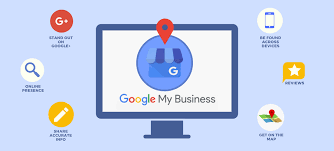
1) Prepare before you start
Google Business Profile: Google Account (owner): An active Gmail (or Google-linked email). Preferably create a dedicated business account (e.g., yourbusiness.name@gmail.com) that you control long-term. Primary contact email & phone: The single phone number and email you will list publicly. Use a local number for better local trust. Secondary admin account: A second Google account (manager) you can grant access to so ownership isn’t locked to one personal account.
Why: verification mail or calls go to the owner. Having a secondary admin prevents lockout.
2) Business identity — what to have ready
- Exact business name (use the real-world signage/business registration name).
- Primary business category (one only) and 2–3 secondary categories (services). Example:
Primary: CCTV Installation,Secondary: Security Camera Sales, CCTV Repair. - Short tagline (6–10 words): Use city + main offering. Example: Patna CCTV Installation & Surveillance Solutions. This helps SEO when used in descriptions.
Why: consistency across web, signage, and directory listings improves ranking and prevents suspension.

3) Address & location assets
- Exact postal address (for storefronts). If you’re service-area, list service cities/areas.
- GPS pin confirmation: Take a photo or screenshot of your Google Maps pin location so you can accurately place it during setup.
- Delivery/entrance notes: Short note (1–2 lines) for customers about where to park/enter (useful on the profile).
Why: accurate location reduces “cannot find” directions and negative UX.
4) Hours, holidays, and booking details
- Regular business hours (Mon–Sun). Include early/late slots if applicable.
- Holiday schedule for next 12 months (list dates).
- Booking method: phone, website booking link, or third-party scheduler. Have URLs ready.
Why: correct hours reduce complaints and improve click-to-call rates.
5) Verification documents & proof (prepare scans/photos)
Google may request one of these depending on method. Keep legible digital copies (PDF or 300+ DPI images):
- Business registration or trade license (if available).
- Utility bill or bank statement with business address (within last 3 months).
- Lease agreement or rent receipt that shows business name/address.
- Owner photo ID (if video verification requested).
- Photos showing signage matching the business name (exterior picture).
Why: speeds up manual or video verifications and reduces rejections.

2) Create or claim your Business Profile (add to Google)
- Go to business.google.com/add and sign in with your Google Account. Click Add your business to Google. Google Help+1
- Enter your business name exactly as you use it in signage and on your website. Select the correct category (this affects which searches you appear in).
- Choose whether you have a physical storefront customers can visit, or if you are a service-area business (you serve customers at their location). Enter your address or service area accordingly. Google Maps+1
Image suggestion while filling this: a clear photo of your storefront or main signage to match the name you enter — it helps verification and user trust.
3) Pin the exact location on Maps
- When asked to set your business location, if Google doesn’t find the address automatically, use the map pin tool to place the marker precisely where customers will find you. Double-check the pin on Street View if available. Google Help
Why this matters: Accurate pinning reduces “how to reach you” queries and improves directions that appear when people search.
4) Add contact details & business hours
- Add your primary phone number, website, and business hours (include holiday closures or special hours). Be meticulous — mismatched hours or phone numbers harm ranking and user trust. Google Business
Image suggestion: a high-resolution logo and a photo showing your staff or service in action — people click listings with good visuals.
5) Choose verification method and verify your business
- After adding your profile, Google will prompt you to verify ownership. Options depend on your business and region: postcard by mail, phone, email, video verification, or in some cases live video call. Verification methods are decided by Google and may vary. Follow the on-screen steps. Google Help+1
Tip: If you get a postcard, place the business sign visibly and have the person listed as owner/manager ready to receive mail. Keep verification codes confidential.
6) Optimize your Business Profile (first 24–48 hours)
- Write a short, keyword-rich business description (what you do, main services, local keywords). Keep it natural and customer-focused.
- Add categories and sub-categories (primary + secondary services).
- Upload 8–12 photos: exterior, interior, team, products, a service being performed, and a cover photo sized for Google’s recommendations. Google Help
SEO hint: Use local keywords (city/neighbourhood) naturally in the first sentence of your description and in photo filenames if possible (e.g., “Patna-CCTV-installation.jpg”).
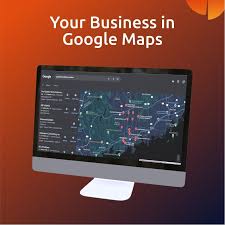
7) Add Posts, Services, and Products
- Use Posts on Google to announce offers, events, or new products. Add a CTA (Book, Call, Learn more).
- Add Services (with descriptions and prices where appropriate) or Products (title, image, price, description). These help Google surface your listing for relevant queries. Google Business
Image suggestion for posts: promotional graphics or product close-ups sized to Google’s recommended dimensions.
8) Manage reviews and messaging
- Ask satisfied customers for reviews and respond promptly to all reviews — thank positive reviewers and professionally address negatives. This builds credibility and local ranking.
- Turn on messaging (if available) to let customers message you directly from Search/Maps; respond within hours if possible. Google Help
Best practice: Add a short review reply template to copy/paste and personalize quickly.
9) Monitor performance & keep content fresh
- Check the Insights section to see how customers find your profile (Search vs. Maps), what queries they used, and actions taken (calls, visits, direction requests). Use this data to refine your keywords, photos, and posts. Google Help
Routine: update photos monthly, post weekly offers/events, and adjust hours for holidays.
10) Handle verification problems or ownership claims
- If Google shows the profile is already verified by someone else, use Request ownership through the profile and follow the instructions. For verification problems, check Google’s support pages or request help via the Business Profile support channels. Google Help+1

Quick checklist (copy & paste)
- Google Account ready
- Business name + category chosen
- Address pinned correctly (or service area set)
- Phone, website, hours added
- 8–12 high-quality images (exterior, interior, team, products)
- Verify via postcard/phone/email/video
- Add services/products + 1–2 posts per week
- Respond to reviews within 24–48 hours
Captions for the images above (relatable visual guide)
- GBP dashboard overview: where you manage posts, photos, and insights.
- Location health & insights card: shows map views and search queries — use it to prioritize changes.
- Example reporting dashboard (performance graphs): monitor traffic and customer actions.
- Local SEO dashboard with trend charts — useful for agencies or multi-location businesses.


Thank you for your sharing. I am worried that I lack creative ideas. It is your article that makes me full of hope. Thank you. But, I have a question, can you help me?
Thank you for sharing such a thoughtful message. I’m genuinely glad to know that the article gave you hope and encouragement. Feeling short on creative ideas is something many people experience at some point, and it does not reflect your potential or ability—it’s often just a temporary phase.
Yes, I would be more than happy to help you. Please go ahead and share your question, and I’ll do my best to provide clear guidance, practical suggestions, and supportive insights to help you move forward with confidence.
I don’t think the title of your article matches the content lol. Just kidding, mainly because I had some doubts after reading the article.
Thanks for sharing. I read many of your blog posts, cool, your blog is very good.
Your point of view caught my eye and was very interesting. Thanks. I have a question for you.