

 Watch
Watch
 CASUAL WEAR
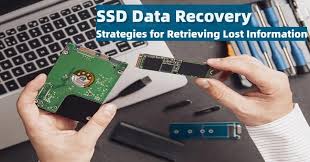
How to Recover Data from an SSD: In an era where speed and reliability are paramount, solid-state drives (SSDs) have become the go-to storage solution for computers, laptops, and external devices. However, data loss on SSDs can occur due to accidental deletion, corruption, or hardware failures, leaving users scrambling to recover precious files. This comprehensive guide on how to recover data from an SSD will equip you with the knowledge, tools, and techniques needed to retrieve lost data effectively. Whether you’re a beginner or an advanced user, we’ll cover everything from basic DIY methods to professional services, while highlighting SSD-specific challenges like TRIM and wear-leveling.
Understanding SSD Data Recovery
SSDs differ from traditional hard disk drives (HDDs) in that they use flash memory (NAND chips) instead of spinning platters. This design makes them faster, more durable, and less prone to mechanical failure, but it also complicates data recovery. When data is deleted or lost on an SSD, the drive’s firmware may mark the space as available, and features like TRIM can overwrite it quickly, making recovery harder than on HDDs.
Key Differences Between SSD and HDD Data Recovery
Data recovery is a critical skill in the digital world, but the process varies significantly depending on whether you’re dealing with a solid-state drive (SSD) or a hard disk drive (HDD). Both are common storage devices, but their underlying technologies—flash memory for SSDs versus spinning platters for HDDs—lead to distinct challenges, methods, and success rates in data recovery. This article explores the key differences between SSD and HDD data recovery, helping you understand when to attempt DIY fixes, when to seek professionals, and how to prevent data loss. Whether you’re a tech enthusiast or someone facing a data crisis, this guide will clarify the nuances.
Overview of SSDs and HDDs
Before diving into recovery differences, let’s briefly recap what SSDs and HDDs are:
- HDD (Hard Disk Drive): Traditional storage with mechanical components, including spinning magnetic platters and read/write heads. They’re affordable and offer high capacities but are slower and more susceptible to physical shock.
- SSD (Solid-State Drive): Modern, flash-based storage using NAND chips. No moving parts make them faster, more durable, and energy-efficient, but they have limitations in write cycles.
These differences directly impact how data is stored, lost, and recovered.
1. Technological Foundations Affecting Recovery
The core technology shapes recovery approaches.
Data Storage and Loss Mechanisms
- HDD: Data is stored on magnetic platters. Loss often occurs due to physical damage (e.g., head crashes) or logical issues (e.g., corruption). Files remain recoverable until overwritten, as the drive doesn’t actively erase data.
- SSD: Data is stored in flash cells. Features like TRIM (automatic data erasure for performance) and wear-leveling (distributing writes to prevent cell wear) can quickly overwrite deleted data, making recovery time-sensitive.
Key Difference: HDDs allow longer recovery windows for deleted files, while SSDs require immediate action to beat TRIM and garbage collection.
Physical vs. Logical Failures
- HDD: Prone to mechanical failures (e.g., motor stops, platter scratches). Physical damage is common from drops, but logical issues (e.g., bad sectors) are recoverable.
- SSD: Less mechanical failure due to no moving parts, but failures are often electronic (e.g., controller chip or NAND wear). Logical recoveries are possible, but hardware failures can be catastrophic.
Key Difference: HDD recoveries often involve repairing or replacing mechanical parts, while SSD recoveries focus on firmware or chip-level fixes.
2. Recovery Methods and Tools
Recovery techniques differ based on the drive type.
DIY Methods
- HDD: Easier for beginners. Use software like Recuva or TestDisk to scan for deleted files or repair partitions. Physical repairs (e.g., platter swaps) are possible with tools like screwdrivers, but risky.
- SSD: More complex due to TRIM. Disable TRIM temporarily and use SSD-specific tools like EaseUS Data Recovery Wizard or DMDE. Avoid tools that trigger deep scans, as they can overwrite data.
Key Difference: HDD DIY is straightforward and forgiving; SSD DIY demands caution to prevent data erasure.

Professional Services
- HDD: Labs use clean rooms to disassemble drives, replace heads, or transplant platters. Success rates are high (up to 95%) for physical damage.
- SSD: Requires specialized equipment for chip-off (removing NAND chips) or controller reprogramming. Success rates are lower (60-80%) due to encryption and wear.
Key Difference: HDD pros focus on mechanical repairs; SSD pros emphasize electronic forensics.
Tools Comparison
- Common for Both: Recuva, TestDisk, Stellar Data Recovery.
- HDD-Specific: More emphasis on partition repair (e.g., DiskPart).
- SSD-Specific: Tools that handle wear-leveling, like R-Studio or GetDataBack.
Key Difference: SSD tools must account for firmware behaviors that HDD tools ignore.
3. Success Rates and Challenges
Recovery isn’t guaranteed, and rates vary.
Success Rates
- HDD: 85-95% for logical issues; 50-70% for physical damage. Higher overall due to stable data retention.
- SSD: 70-85% for logical; 40-60% for physical. Lower because of active data management features.
Key Difference: HDDs have better odds for severe damage; SSDs excel in minor, quick recoveries.
Common Challenges
- HDD: Dust contamination in clean rooms, platter damage, or motor failures. Time isn’t as critical.
- SSD: TRIM overwriting, encryption lockouts, or firmware corruption. Delays can doom recovery.
Key Difference: HDD challenges are mechanical and visible; SSD challenges are invisible and firmware-driven.
Time and Cost Factors
- HDD: DIY takes minutes to hours; professional costs $200-1,000, with faster turnaround (days).
- SSD: DIY can take hours; professional costs $300-1,500, with longer waits (weeks) due to complexity.
Key Difference: SSD recovery is often more expensive and time-consuming.
4. Pros and Cons of Recovery for Each
HDD Data Recovery Pros
- Higher success for physical damage.
- Cheaper and simpler DIY options.
- Data remains stable without active erasure.
HDD Data Recovery Cons
- Vulnerable to further physical damage during handling.
- Slower for large drives.
- Mechanical parts can fail permanently.
SSD Data Recovery Pros
- Faster scans on healthy drives.
- No mechanical wear during recovery.
- Better for encrypted data if keys are available.
SSD Data Recovery Cons
- TRIM can erase data mid-recovery.
- Lower success for firmware issues.
- Requires specialized knowledge.
Key Difference: HDD recovery is more predictable and user-friendly; SSD recovery is unpredictable and tech-heavy.
5. Prevention Strategies
To avoid recovery altogether:
For HDDs
- Handle gently; use backups; monitor for bad sectors with CHKDSK.
For SSDs
- Enable backups; keep firmware updated; avoid overfilling (maintain 20% free space).
Key Difference: HDD prevention focuses on physical care; SSD prevention emphasizes software and usage limits.
6. When to Choose SSD or HDD for Data Recovery Needs
- Opt for HDD Recovery If: You have physical damage or need affordable, high-success options.
- Opt for SSD Recovery If: The loss is recent and logical, and you’re willing to invest in tools/services.
- General Advice: Always back up data. For critical files, use hybrid approaches or cloud storage.
Case Studies Highlighting Differences
- HDD Case: A dropped external HDD with clicking sounds. Professional platter transplant recovered 90% of data.
- SSD Case: Firmware update failure. Chip-off recovery retrieved 70% after weeks of work.
- Comparison: Both involved accidental damage, but HDD was mechanical (fixable), while SSD was electronic (riskier).
Common Causes of Data Loss on SSDs
Before attempting recovery, identify the cause to choose the right approach.
1. Accidental Deletion or Formatting
- Users delete files or format the drive unintentionally.
- Files aren’t immediately overwritten, but TRIM can erase them during idle time.
2. File System Corruption
- Caused by improper ejection, power outages, or software bugs.
- Symptoms: Drive not recognized, errors like “RAW file system.”
3. Firmware or Controller Failures
- SSD firmware updates gone wrong or controller chip malfunctions.
- This can make the drive inaccessible without specialized tools.
4. Physical Damage
- Though rare, drops or overheating can damage NAND chips or solder joints.
- Water or static electricity can also cause failures.
5. Malware and Ransomware
- Viruses encrypt or delete data; SSDs can spread infections quickly via USB connections.
6. Overwriting or Wear-Out
- Frequent writes lead to cell degradation; TRIM accelerates data erasure.
7. Partition Issues
- Lost or corrupted partitions hide data.
8. Encryption Lockouts
- Forgetting passwords on encrypted SSDs (e.g., BitLocker) renders data inaccessible.
According to studies, 70% of SSD data loss is due to logical errors, while 30% involves hardware (source: Backblaze). Early detection improves recovery odds.

Tools and Software for SSD Data Recovery
Choose tools that support SSDs and avoid those that trigger TRIM. Download from official sources.
Free Tools
- Recuva: Simple scans for deleted files, but limited SSD support.
- TestDisk: Repairs partitions and recovers data without deep scans that might overwrite.
- EaseUS Data Recovery Wizard Free: SSD-friendly with quick and deep scans.
- DMDE (DM Disk Editor and Data Recovery): Advanced for SSD wear-leveling.
Paid Tools
- Stellar Data Recovery: Handles SSD encryption and firmware issues.
- Disk Drill: Intuitive, with SSD-specific recovery modes.
- R-Studio: Powerful for complex SSD recoveries, including RAID.
- GetDataBack: Focuses on file system reconstruction.
Hardware Tools
- USB Enclosures: Safely connect internal SSDs.
- Chip-Off Kits: For professional extraction of NAND chips.
For encrypted SSDs, tools like Elcomsoft Forensic Disk Decryptor may be needed.
Step-by-Step Guide: How to Recover Data from an SSD
Stop using the SSD immediately to avoid overwriting. Work on a different drive.
Step 1: Assess and Prepare
- Check if the SSD is detected in Disk Management (Windows) or Disk Utility (Mac).
- If not, try different ports or enclosures.
- Create a disk image using tools like dd or Macrium Reflect to work on a copy.
Step 2: Disable TRIM (If Possible)
- On Windows: Run
fsutil behavior set DisableDeleteNotify 1in Command Prompt (re-enable later). - This prevents automatic data erasure during recovery.
Step 3: Select and Install Recovery Software
- Use SSD-compatible tools like EaseUS or DMDE.
- Install on a healthy drive.
Step 4: Scan the SSD
- Connect the SSD and select it in the software.
- Start a quick scan for recent deletions, then a deep scan for thorough recovery.
- SSD scans may take longer due to wear-leveling.
Step 5: Preview and Recover Files
- Browse results and preview files to ensure integrity.
- Select and recover to a safe location (not the SSD).
Example: Recovering Data with EaseUS Data Recovery Wizard
- Download and install the software.
- Select the SSD and choose “Scan.”
- Wait for the scan to complete (monitor progress).
- Filter by file type (e.g., photos, documents).
- Recover selected files to an external drive.
For firmware issues, use manufacturer tools like Samsung Magician.
Handling Encrypted SSDs
- If password-protected, enter credentials during scan.
- For hardware encryption, professional help may be required.
Professional SSD Data Recovery Services
For complex cases, professionals use clean rooms and specialized equipment.
When to Seek Help
- Physical damage, firmware corruption, or failed DIY attempts.
- Encrypted drives or business-critical data.
Top Services
- DriveSavers: Experts in SSD chip-off and controller repairs.
- Kroll Ontrack: Handles encrypted and damaged SSDs.
- Secure Data Recovery: Affordable, with SSD-specific labs.
Costs: $300–$1,500. Provide drive model and failure details.
Preventing Data Loss on SSDs
Prevention is key, as SSD recovery is trickier.
1. Regular Backups
- Use cloud services or external drives; avoid relying solely on SSDs.
2. Proper Maintenance
- Keep firmware updated; monitor health with tools like CrystalDiskInfo.
- Avoid full capacity usage (leave 10-20% free).
3. Safe Practices
- Eject drives properly; use UPS for power stability.
- Enable encryption but remember passwords.
4. Security Measures
- Install antivirus; avoid suspicious downloads.
Case Studies in SSD Data Recovery
- Case 1: User deleted files; EaseUS recovered 90% before TRIM activated.
- Case 2: Firmware failure; Professional service rebuilt the controller.
- Case 3: Encrypted SSD; Password recovery tools retrieved data.
FAQs on SSD Data Recovery
How long does SSD recovery take?
DIY: 1-4 hours; Professional: 1-2 weeks.
Is SSD data recovery possible after TRIM?
Difficult, but not impossible if scanned immediately.
Can I recover data from a dead SSD?
Yes, via chip-off, but success varies.
What’s the cost?
DIY: Free; Professional: $500+.
How to recover from SSD RAID?
Use RAID-specific software.

Conclusion: Mastering SSD Data Recovery
Recovering data from an SSD requires quick action, the right tools, and an understanding of its unique mechanics. While challenges like TRIM make it harder than HDD recovery, following this guide can help you succeed. Prioritize prevention through backups to avoid the hassle. If you encounter issues, consult experts. Stay informed and protect your data!
Pros and Cons of SSD vs. HDD Data Recovery
When comparing data recovery from solid-state drives (SSDs) and hard disk drives (HDDs), the differences stem from their technologies—flash memory in SSDs versus mechanical platters in HDDs. This affects success rates, methods, costs, and challenges. Below, I’ll outline the pros and cons of recovering data from each, based on factors like ease, reliability, speed, and cost. This can help you decide which recovery approach suits your situation, whether DIY or professional.
Pros of SSD Data Recovery
- Higher Speed and Efficiency for Logical Issues
SSDs are faster to scan and recover from in cases of accidental deletion or corruption, thanks to no mechanical delays. Tools can complete quick scans in minutes, making it ideal for urgent recoveries. - No Mechanical Wear During Recovery
Without moving parts, SSDs don’t risk further damage from handling or vibrations during the process. This reduces the chance of worsening the problem, unlike HDDs where disassembly can cause scratches. - Better Durability in Harsh Conditions
SSDs are more shock-resistant, so if the drive was exposed to drops or heat before failure, recovery is still feasible without additional mechanical complications. - Advanced Encryption Handling
Many SSDs have built-in hardware encryption (e.g., self-encrypting drives). If you have the key, recovery tools can decrypt data seamlessly, adding a layer of security during the process. - Lower Risk of Dust or Contamination
Unlike HDDs, which require clean rooms to avoid dust on platters, SSD recoveries can often be done in standard environments, simplifying professional services. - Potential for Firmware-Based Fixes
Issues like controller failures can sometimes be resolved with firmware updates or reprogramming, offering non-invasive recovery options. - Compact and Portable for Transport
SSDs are smaller, making them easier to send to recovery labs without shipping hassles.
Cons of SSD Data Recovery
- Lower Overall Success Rates
Due to TRIM, wear-leveling, and garbage collection, data can be overwritten quickly, leading to success rates of 60-80% compared to HDDs’ 85-95%. Delays can make recovery impossible. - Time-Sensitive Process
You must act immediately after data loss; even idle time can trigger automatic erasure, complicating DIY attempts. - Higher Costs for Professional Services
Specialized tools and expertise (e.g., chip-off techniques) make professional SSD recovery more expensive (200-1,000). - Complexity and Technical Expertise Required
SSD recoveries often need advanced knowledge of firmware and NAND chips. Beginners may struggle with disabling TRIM or selecting compatible tools, risking further data loss. - Limited Options for Physical Damage
While rare, NAND chip failures are hard to repair without professional labs, and success is unpredictable. - Potential for Incomplete or Corrupted Files
Wear-leveling scatters data, so recoveries might yield fragmented files or missing pieces, especially after prolonged use. - Firmware and Update Risks
Attempting recoveries can sometimes brick the drive if firmware is mishandled, leading to permanent loss.
Pros of HDD Data Recovery
- Higher Success Rates, Especially for Physical Damage
HDDs excel in recoveries from head crashes or platter damage, with rates up to 95% for logical issues and 50-70% for physical. Data remains stable longer without active erasure. - More Forgiving Timeline
Deleted files on HDDs aren’t immediately overwritten, giving you more time (days or weeks) to attempt recovery without urgency. - Cost-Effective and Accessible DIY Options
Free tools like Recuva or TestDisk are user-friendly, and basic repairs (e.g., partition fixes) can be done at home without specialized equipment. - Mechanical Repairs Are Feasible
Components like heads or motors can be replaced in clean rooms, making severe damage recoverable in ways SSDs can’t match. - Wider Range of Tools and Tutorials
There’s abundant online guidance for HDD recovery, as it’s been around longer, reducing the learning curve. - Better for Large-Scale or Legacy Data
HDDs handle bulk recoveries well, and older drives (without modern features) are simpler to work with. - Lower Risk of Overwriting During Scans
Scans don’t trigger automatic data erasure, so multiple attempts are safer.
Cons of HDD Data Recovery
- Susceptible to Further Physical Damage
Handling or transporting HDDs can cause vibrations, scratches, or dust ingress, worsening the issue during recovery. - Slower Process
Mechanical components make scans and repairs time-consuming (hours to days), especially for large drives. - Higher Risk in Harsh Environments
Drops or extreme conditions can exacerbate failures, and recoveries require clean rooms to avoid contamination. - Aging Technology Challenges
Older HDDs may have obsolete parts, making replacements hard to find and increasing costs. - Noise and Power Issues
Failing HDDs can make loud noises (clicking), and power surges during recovery can cause more damage. - Less Secure for Modern Needs
Without built-in encryption, recovered data is more vulnerable to unauthorized access if not handled properly. - Environmental Factors
Dust or humidity can contaminate platters, requiring professional intervention even for simple issues.

Overall Comparison: When to Choose SSD or HDD Recovery
- Choose SSD Recovery If: The loss is recent, logical, and you’re okay with higher costs/tech hurdles. Ideal for modern devices where speed matters.
- Choose HDD Recovery If: Dealing with physical damage or legacy drives; it’s cheaper and more reliable for long-term data stability.
- General Tip: For both, prioritize backups to avoid recovery altogether. If DIY fails, go professional—HDDs are often easier to diagnose.
In summary, SSD data recovery offers speed and durability but demands quick action and expertise, while HDD recovery is more accessible and successful for physical issues but riskier to handle. Weigh your data’s value against these factors. If you have a specific drive type or scenario, share details for tailored advice!