

 Watch
Watch
 CASUAL WEAR
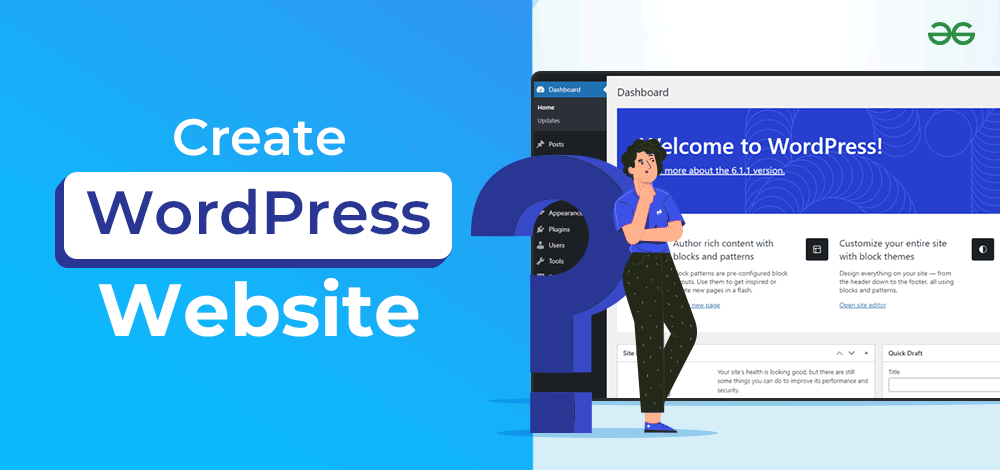
How to use wordpress: In today’s digital era, building a powerful online presence is essential for every business, entrepreneur, blogger, and professional. And when it comes to website building, WordPress stands as the most trusted and powerful platform in the world. Whether you want to create a business website, blog, online store, portfolio, or news portal — WordPress makes everything simple, flexible, and scalable.
If you are new to the platform and wondering how to use WordPress effectively, this article will guide you step-by-step in a practical and easy way.
⭐ What is WordPress?
WordPress is a free and open-source Content Management System (CMS) that allows you to build a website without learning coding or programming.
✔ Why WordPress is Popular?
- Easy to use
- Drag-and-drop website design
- Thousands of free and paid themes
- Unlimited plugins for customization
- SEO-friendly structure
- Suitable for any type of website
More than 43% of all websites in the world are built on WordPress — a proof of its reliability and power.

🔧 How to Use WordPress — Step-by-Step Beginner Guide
Let’s explore the complete process from installation to publishing your first website page.
🛑 Step 1: Choose a Domain Name & Hosting
Before installing WordPress, you need:
- Domain name (example: mywebsite.com)
- Web hosting (storage space for your website)
Popular hosting providers:
- Hostinger
- Bluehost
- SiteGround
- GoDaddy
- A2 Hosting
After purchasing hosting, go to cPanel and install WordPress with 1-Click Auto Installer.
📥 Step 2: Login to WordPress Dashboard
Once installation is complete, login using:
🔗 yourdomain.com/wp-admin
Dashboard gives access to everything including:
- Pages
- Posts
- Themes
- Plugins
- Media
- Settings
- Users
This is the main control panel of your website.

🎨 Step 3: Choose a Theme for Website Design
A theme decides how your website looks.guide
To install a theme:
- Go to Appearance → Themes
- Click Add New
- Search and install your favorite theme
- Click Activate
Popular beginner-friendly themes:
- Astra
- Blocksy
- OceanWP
- Neve
- GeneratePress
Paid premium themes provide more customization and speed.
🔌 Step 4: Install Essential Plugins
Plugins add extra features and functionality to your website.
Must-have plugins:
| Purpose | Plugin |
|---|---|
| SEO | RankMath / Yoast |
| Security | Wordfence |
| Backup | UpdraftPlus |
| Contact Form | WPForms |
| Speed | WP Super Cache / LiteSpeed Cache |
| Website Builder | Elementor / Gutenberg |
To install plugins:
Go to Plugins → Add New → Install → Activate
📝 Step 5: Create Pages for Your Website
Important pages for most websites:
- Home
- About
- Services / Products
- Contact
- Blog
- Privacy Policy
- Terms & Conditions
To create pages:
Go to Pages → Add New → Write Content → Publish
📰 Step 6: Add Blog Posts
Blogs help in SEO and organic traffic growth.
Process:
- Go to Posts → Add New
- Write the title & content
- Add categories & tags
- Add featured image
- Click Publish
Posting regularly improves search ranking.

🔗 Step 7: Add Navigation Menu
A menu helps users navigate the website easily.
Go to:
Appearance → Menus → Create Menu → Add Pages → Save
🧭 Step 8: Customize Your Website Completely
You can edit fonts, colors, header, footer and layout.
Go to:
🔧 Appearance → Customize
Here you can control:
- Logo & favicon
- Homepage layout
- Header & footer
- Typography
- Background & colors
⚙ Step 9: General Settings
Make sure the basic settings are correct.
Go to:
➡ Settings → General / Reading / Permalinks
Recommended Permalink:
🔹 Post Name (SEO-friendly)
📌 Step 10: Launch Your Website Publicly
Once design is complete:
- Check responsiveness on mobile
- Check load speed
- Test contact form & buttons
- Add sitemap to Google Search Console
Now your website is ready for visitors 🎉
🚀 Pro Tips to Use WordPress Like a Professional
| Tip | Result |
|---|---|
| Use lightweight theme | Fast loading |
| Install limited plugins | Better performance |
| Compress images | Higher speed |
| Update WordPress regularly | Security improvement |
| Use SEO plugins | Higher traffic |
| Take regular backups | Data safety |
💡 Final Conclusion
WordPress is the most powerful website-building platform for beginners and professionals. You don’t need coding knowledge — just understanding the dashboard is enough to build an attractive and functional website. With the right theme and plugins, you can create any type of website within hours, while maintaining speed, SEO, and user experience.
Whether your goal is business promotion, blogging, online sales, or branding — WordPress is the smartest and future-proof choice.
🔥 Suggested SEO Keywords
WordPress tutorial for beginners, how to use WordPress, WordPress website building, how to install WordPress, WordPress complete guide, WordPress dashboard explained, WordPress plugins list, how to customize WordPress website, website building without coding, WordPress for business
Can you be more specific about the content of your article? After reading it, I still have some doubts. Hope you can help me.
Your point of view caught my eye and was very interesting. Thanks. I have a question for you. https://accounts.binance.com/uk-UA/register-person?ref=XZNNWTW7
Can you be more specific about the content of your article? After reading it, I still have some doubts. Hope you can help me.
I don’t think the title of your article matches the content lol. Just kidding, mainly because I had some doubts after reading the article.